Creator Flow Guide
Creator Flow Node Mode Guide
Node Mode is a node-style visualization for Creator Flow scenes. It lets you see shot order, continuity, dialogue forks, output status, and active post-production controls in one spatial view.
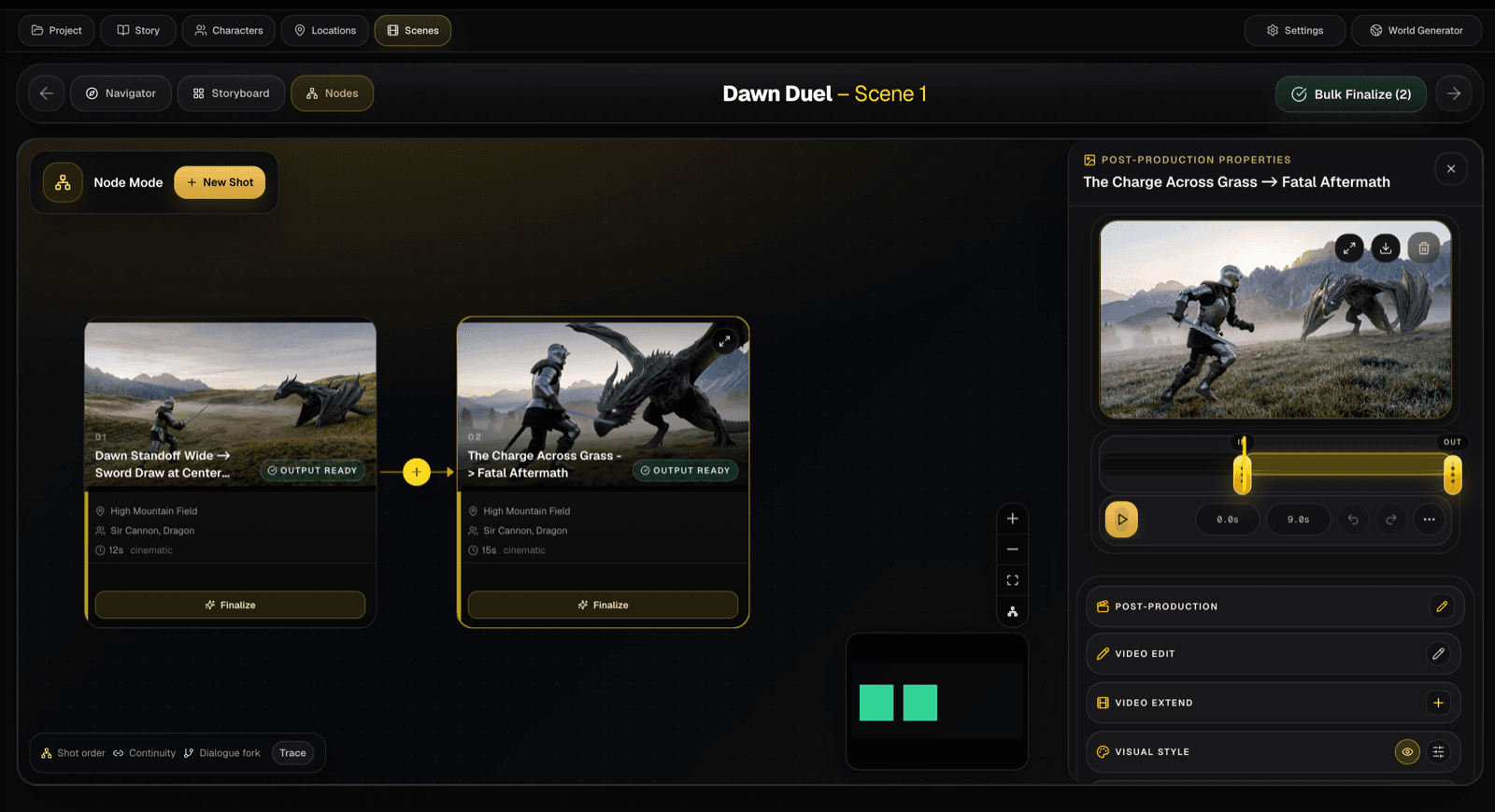
Node-style scene view
See the scene as connected shots
Storyboard mode is useful when you want cards in order. Node Mode is useful when the relationships between shots matter: order, continuity, forks, output readiness, and which generated beat is selected for review.
Use Node Mode when a scene needs to be understood as connected beats instead of a flat list. Each card represents a shot, and the connections make sequence order easier to scan.
Trace how one output leads into the next, where a dialogue fork may branch, and which shot needs a tighter transition before finalizing the scene.
Select a node to review its generated frame, post-production properties, video edit controls, extend options, and style controls without losing the scene map.
Use output status and bulk finalize controls to see which shots are ready and which still need image, video, edit, or continuity work.
When to use Node Mode
Use Node Mode once a scene has multiple shots and you need to reason about how they connect. It is especially helpful for action scenes, conversations, branching dialogue, continuity checks, and scenes where one generated output becomes the visual reference for the next shot.
Stay in Storyboard when you only need a simple ordered list. Switch to Node Mode when the structure of the scene matters as much as the individual shot cards.
Next step
Open Creator Flow and switch to Nodes
Start with a real scene, generate a few shots, then use Node Mode to inspect how the scene connects before finalizing the output.
